Downloading Inspection Results
Easily access, view, and download your results after completing an inspection.
Where to Find Saved Inspection Results
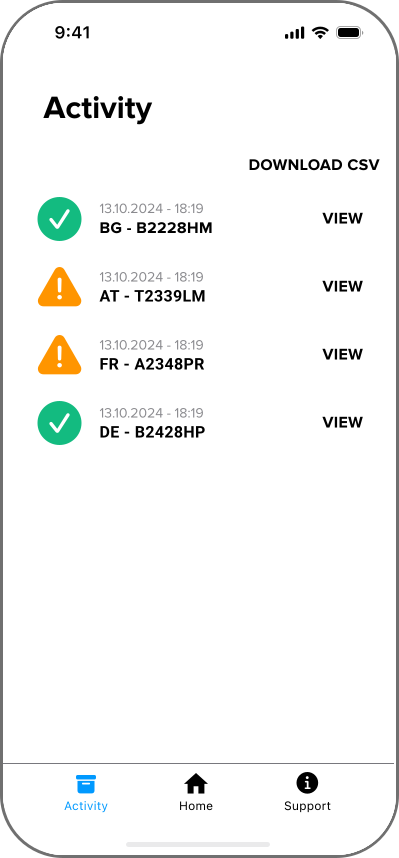
All inspection results are automatically saved in Activity in the TireBuddy App.
Each entry lists the date, time, and an identifier (for example, the license plate).
- Tap View next to any inspection entry to see detailed results.
- To download your data, tap Download CSV for a spreadsheet version of your inspection records.
Viewing and Downloading Reports
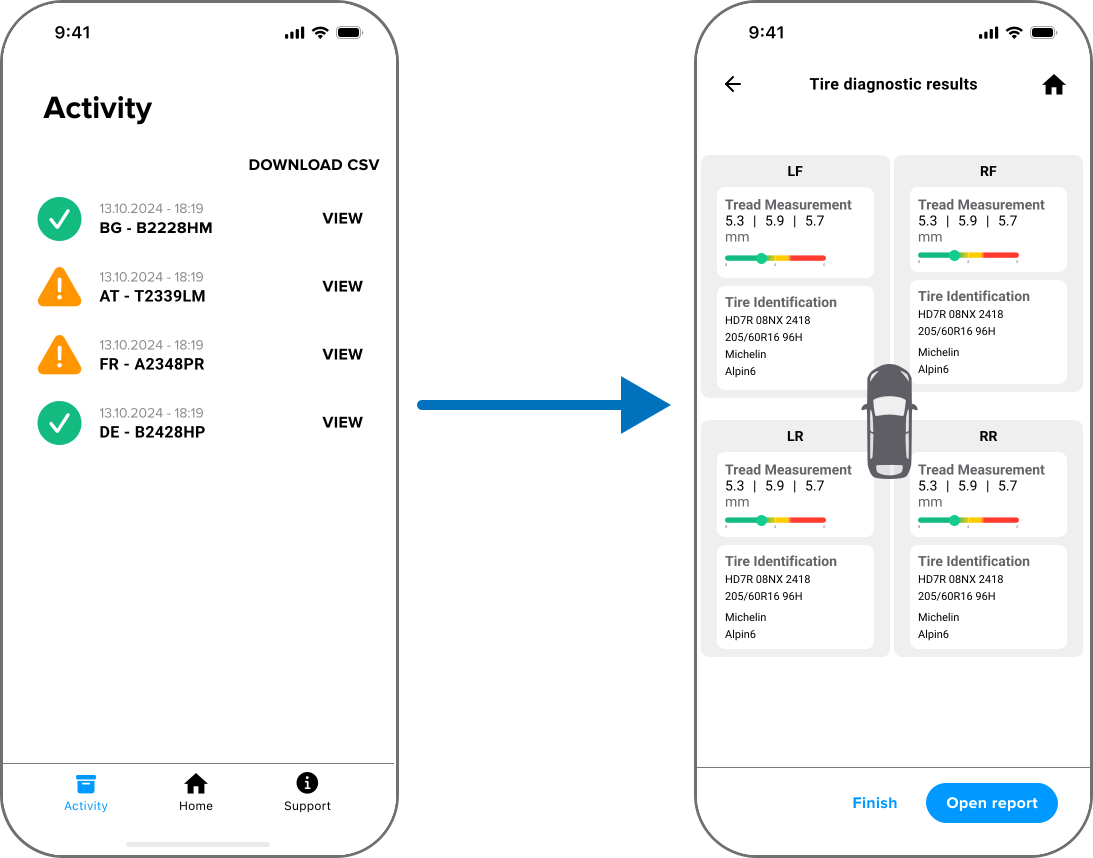
After viewing an inspection, you’ll see a Tire Diagnostic Results overview for each tire, including:
- Tread measurements by zone
- Tire identification details (DOT/TIN, Tire Size, Make, Model)
At the bottom of this screen, tap Download Report to generate a PDF.
You can also start a new inspection at any time with Start New Inspection.
What the Downloaded PDF Report Looks Like
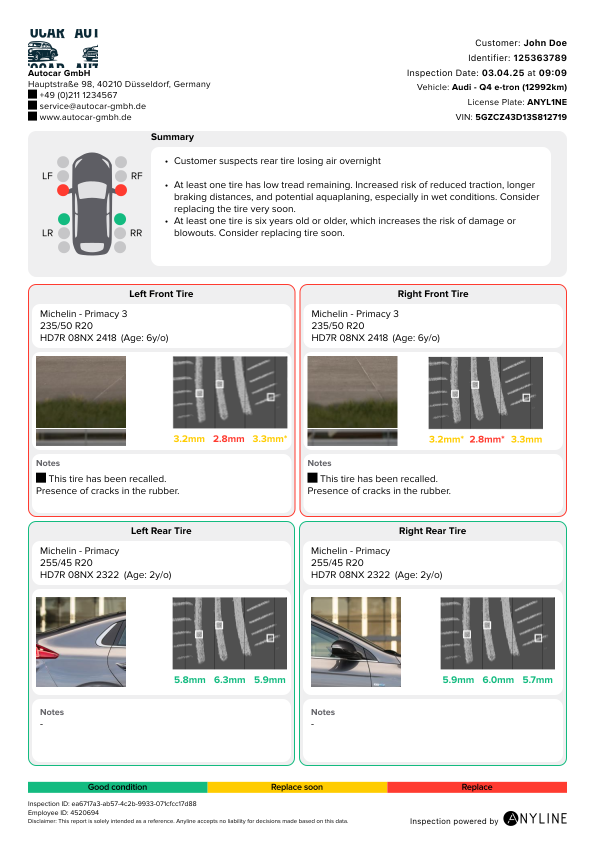
The PDF report provides a comprehensive summary of your inspection, including:
- Customer and vehicle details (based on what’s enabled in Settings)
- Visual summary and notes for each tire
- Tread depth measurements by zone, with color-coding for quick reference
- Any inspection notes (such as cracks or visible damage)
- Automatic warnings and recommendations generated from tire conditions, tread depth, tire age, and inconsistencies detected during the inspection
Quick Access
You can always find and download previous inspections from the Activity screen. For best results, make sure all data is reviewed and saved before exporting your report.